While the AI is busy,
you keep moving.
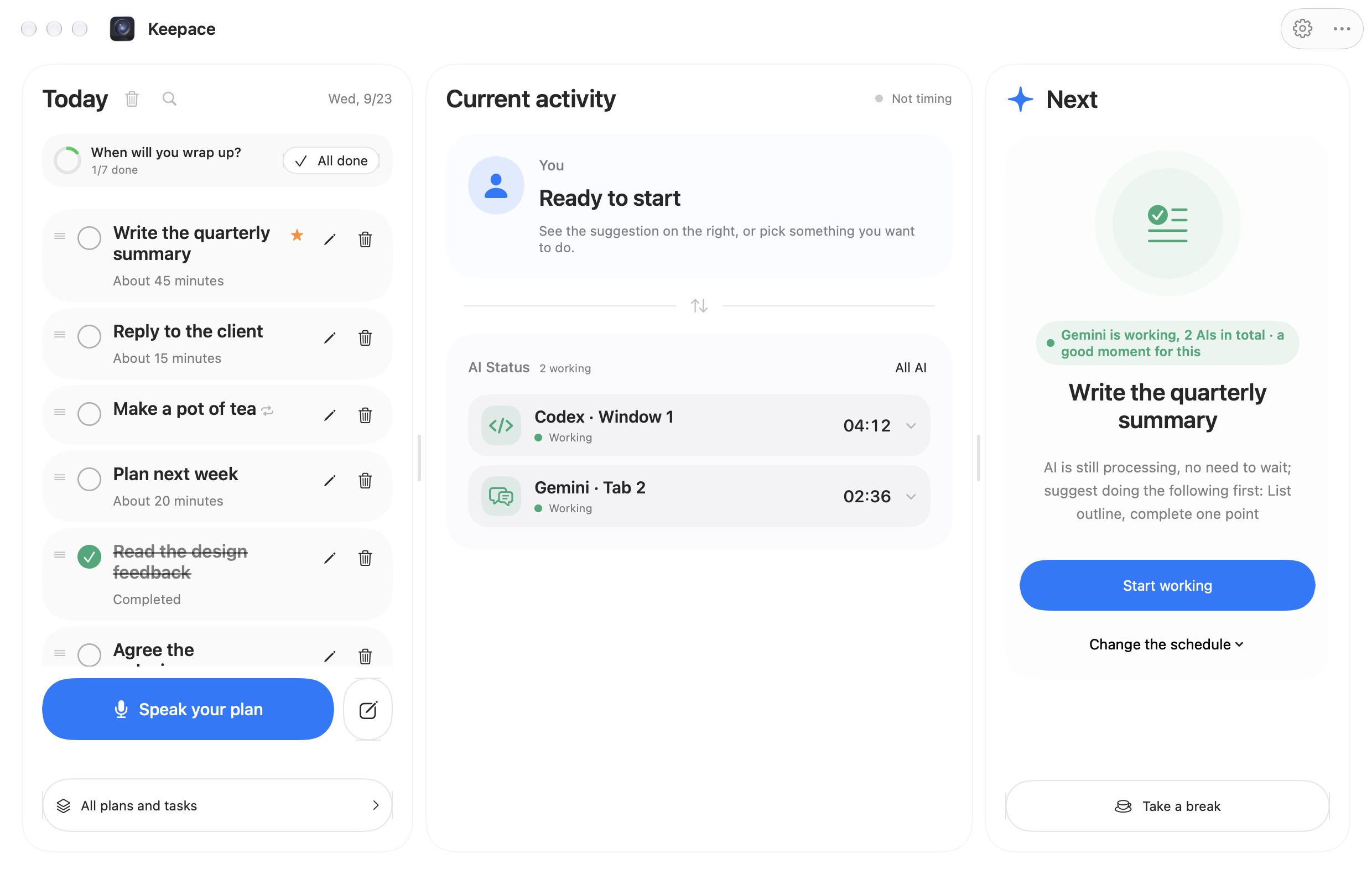
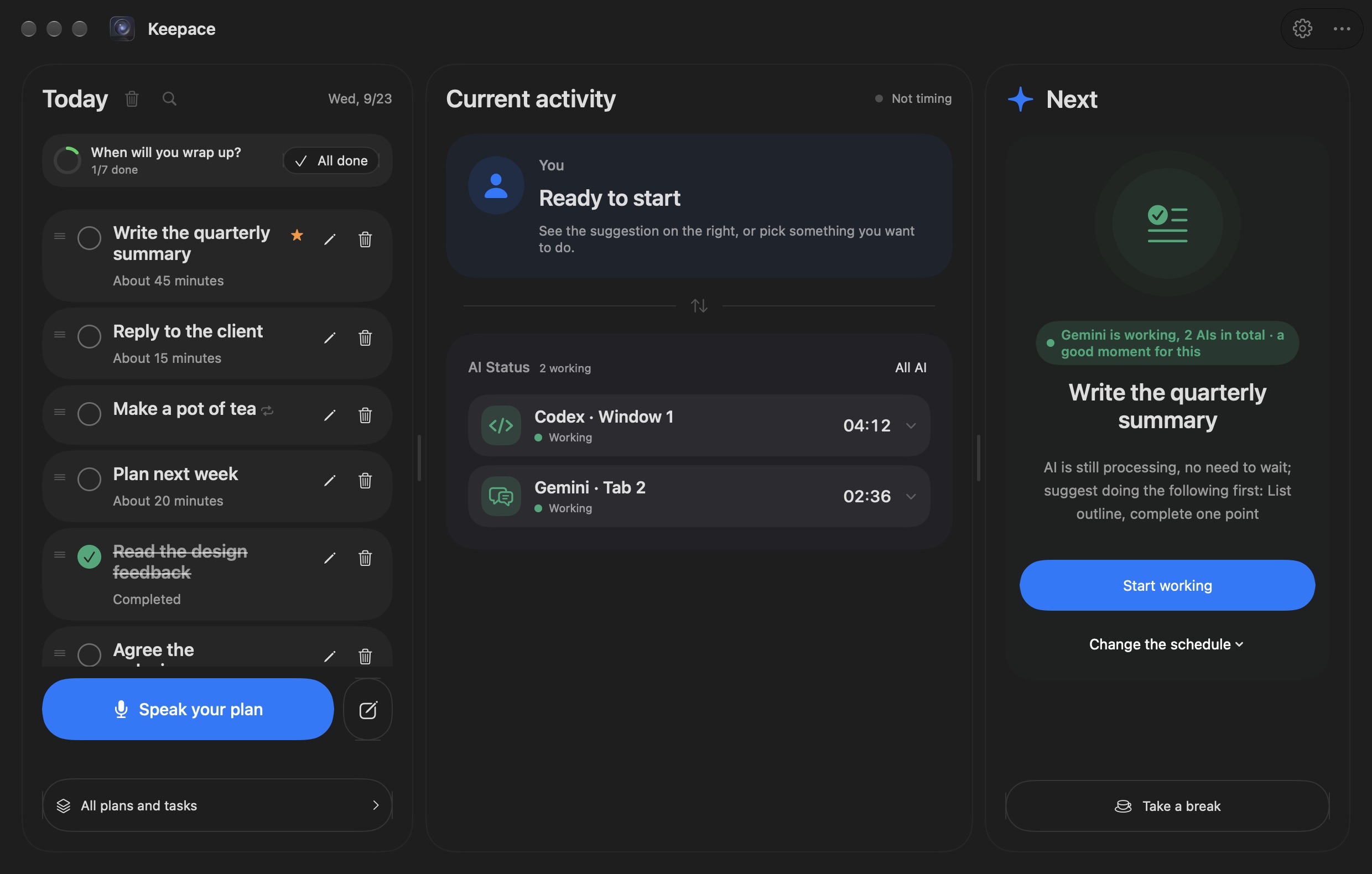
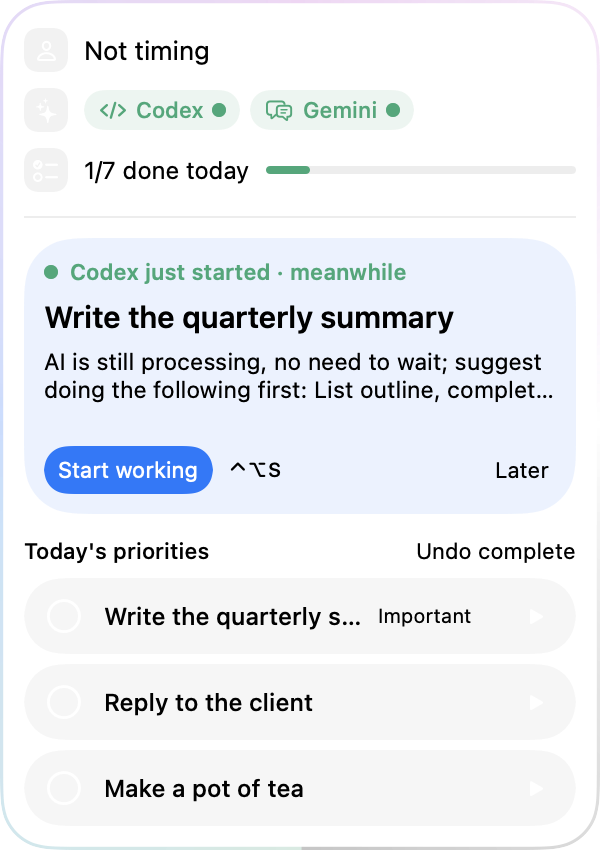
After you hand a task to an AI, you neither sit and wait nor have to work out what to do next. Keepace sees that it is busy, picks one thing from the plan you spoke out loud, and calls you back when the result is ready.
Three things it watches for you
Keepace sits beside your AI tools as a dispatcher, not as one more chat app. You keep using Codex, Claude and ChatGPT as usual; it only watches whether they are busy.
It sees the AI working
It reads the Stop and Send buttons next to the AI's input box, and from those knows whether it is working, waiting for you, or finished. It never reads the conversation or what you type.
One suggestion at a time
From today's list it picks one thing you can start now and stop halfway, including a two-minute errand like making tea. It tells you plainly why it picked that one; if it does not fit, ask for another.
It calls you back when the AI is done
When the AI stops or needs your confirmation, the reminder waits in line instead of interrupting what you are concentrating on. One click takes you back to that AI, and on the web straight back to that conversation.
A small dot in the corner of your screen
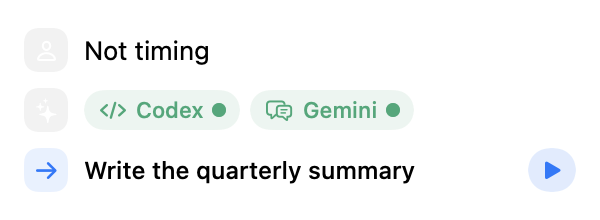
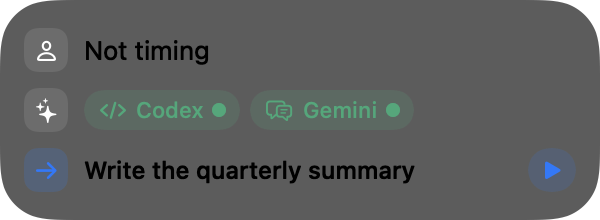
With nothing going on it is just a dot, ringed by today's progress. When an AI starts, it becomes a capsule; when several things run at once, a card. Point at it to open everything, drag it anywhere. You can also fix it to one shape in the settings.




Say it once and today is laid out
- Say your plan:One click starts dictation; say it in any order. It comes back as a mind map you can edit, and one confirmation puts it on today's list.
- On your own Mac:An optional model on your Mac (about 2.5 GB) does the sorting, entirely offline; your words never leave the machine.
- Repeating things:Habits like drinking water or checking mail can repeat every day, on weekdays, on chosen weekdays or on days of the month, and appear at the top of the list when they are due.
- Steps, tags and reminders:Break one thing into steps and tick them off, add your own tags, find anything again with ⌘F. A reminder arrives as a system notification, and waits out your quiet hours.
- Finishing and looking back:Set the time you expect to finish and it asks once; anything left can move to tomorrow. The review of today, this week and this month uses real records only — no invented productivity score.
- Your data is yours:One click in the settings exports everything to a single file, and a backup imports back. Importing only brings back what is missing; it never overwrites what you have.
Whichever one you use
Desktop apps are recognised directly. For the web, install the browser component once in Chrome, Edge or Brave and background tabs count too; in Safari, the page each window is showing is recognised.
When one of these sites is redesigned, Keepace may stop recognising its buttons for a while. It then says the status is unknown rather than guessing busy or finished, and we follow with an update.
It looks at buttons, not at content
It does not read conversations
It reads the names of a few buttons next to the AI's input box (Stop, for instance) — never the chat, what you are typing, the page title or your account.
Nothing is uploaded
Your to-dos, plans and spoken words stay on this Mac. The local model runs entirely offline. There is no account and nothing to register.
This site is clean too
No analytics, no third-party scripts or fonts on this site. The app goes online only to check for updates, confirm the trial or an activation, and download the local model.
Use it free for 14 days, buy it if you like it
Priced in Australian dollars; WeChat payments are converted at a fixed rate. One purchase, yours for good.
Free trial
- Download, open, use everything — no registration
- Counted by the days you actually open it; closed days do not count
- When the trial ends, your to-dos and plans are still there to read and edit
Lifetime
At the fixed WeChat rate of 4.7:¥93.95
- One Mac, for good, with every later update included
- In Settings › Activation, scan the seller's WeChat code and pay
- The seller sends you a redeem code; paste it into the app to activate (keep it safe)
After the trial, watching the AI, suggesting what is next and sorting spoken plans need an activation; your to-dos, plans and records stay yours either way. Redeem codes are sent by hand once the seller confirms payment, so there may be a short wait.
Download Keepace
Version coming soon · free for 14 days · later versions update from inside the app with one click

For Mac
Universal, Apple silicon and Intel · macOS 14 or later
- File
- —
- SHA-256
—
The release is coming soon.
Installing it the first time: four steps
- Open the DMG you downloaded and double-click Keepace inside it. It moves itself into Applications.
- macOS stops it once and says the developer cannot be verified (this build is not notarised by Apple yet — see below). Open System Settings › Privacy & Security, scroll to the line saying Keepace was blocked, click Open Anyway and confirm. You only do this once.
- The app opens one setup page: allow it to see when an AI is busy (the macOS Accessibility switch). It ticks itself once that is done.
- Optional: install the browser component for AI on the web, and download the local model. The app walks you through both.
About the signature, honestly: this build is signed with the developer's own certificate and is not notarised by Apple yet (the Apple Developer Program application is still pending), which is why macOS says it cannot verify it. To check the file yourself, run this in Terminal: shasum -a 256 ~/Downloads/Keepace-mac.dmg — if it matches the SHA-256 above, the file is intact.
You might be wondering
Does it read my conversations with the AI?
No. It looks at the names of a few buttons beside the input box (Stop, Send, Allow once and the like) to tell whether the AI is busy. The conversation, what you type and the page title are never read and never uploaded.
Why does it need the Accessibility permission?
macOS requires you to turn that switch on yourself, in System Settings › Privacy & Security › Accessibility, before one app may look at buttons in another app's window. Keepace uses it only to read the state of those buttons; it never clicks or types for you.
It says the developer cannot be verified. Is that safe?
That is what macOS says about any app it has not seen notarised by Apple. Keepace is signed with the developer's own certificate, but the Apple Developer Program application has not come through, so there is no notarisation yet. You can check the file against the SHA-256 on the download page to be sure it is the one this site published. Once notarisation arrives, the app will offer the update itself; that one change of certificate means granting the system permissions again, and the release notes will say so.
How are the 14 free days counted?
By the days you actually open Keepace: opening it several times in one day still counts as one, and days it stays closed do not count. It confirms online; if you are offline now and then, it keeps working for up to 3 days.
How do I activate after buying?
In Settings › Activation, scan the code to add the seller on WeChat. After payment they send you a redeem code; paste it in and it is activated, with no further online checks. One code covers one Mac.
How do updates arrive?
The app checks each time it opens and shows a bar at the top of the window when there is a new version. Update and Restart downloads it, verifies the signature, replaces the app, and keeps your settings and permissions.
Is there a Windows version?
Not for now — Mac only.
How do I uninstall it?
Drag Keepace from Applications to the Trash. Your data is in ~/Library/Application Support/Keepace; delete that folder too if you do not want to keep it.